Find your local data
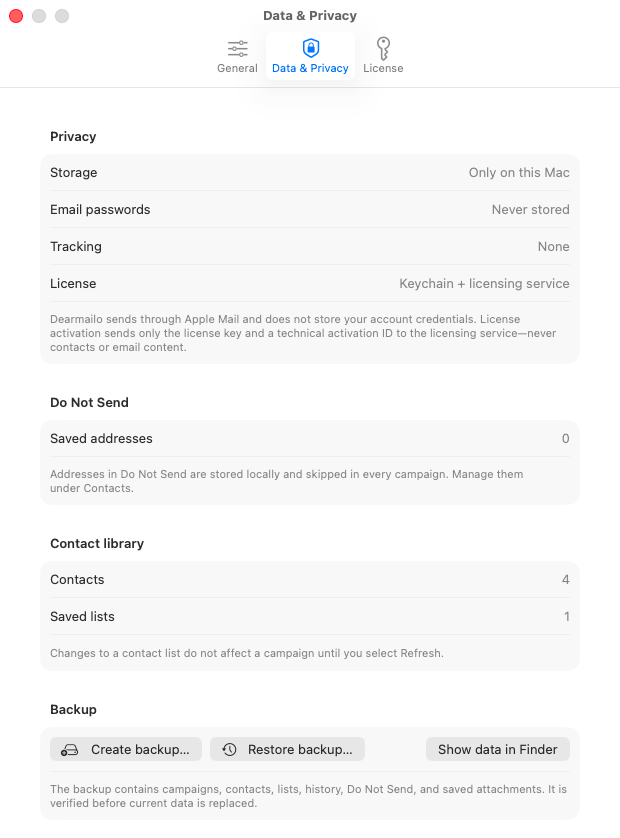
Open Dearmailo → Settings → Data & Privacy. This is where you can check the contact-library summary, create or restore a backup, and choose Show data in Finder to locate the saved data.
Campaigns and contacts are stored on your Mac. Use Dearmailo to edit them rather than changing its data files by hand.
Create a backup you can keep
- Open Data & Privacy in Settings.
- Choose Create backup and select a destination you control.
- Keep the resulting folder, whose name ends in
.dearmailobackup, intact.
The backup contains saved campaigns, contacts, lists, send history, Do Not Send entries, and saved attachments. Treat it as private: it can contain both contact details and message content.
Saved sender signatures and app preferences are stored separately and are not included in this backup. If you are moving to another Mac, keep a separate copy of the signatures you want to reuse.
Restore a saved backup
- Choose Restore backup in Data & Privacy.
- Select the complete
.dearmailobackupfolder. - Read the confirmation and restore only when you are ready to replace the current contacts and campaigns.
Dearmailo makes an automatic backup of the current saved data before replacing it. After restoring, inspect your campaigns and attachments before doing further work. If the backup cannot be opened, keep the original folder unchanged and contact support.
Understand lists and contact removal
A contact can belong to several lists. Removing a contact from one list only removes that membership; deleting a list does not delete its contacts from All contacts.
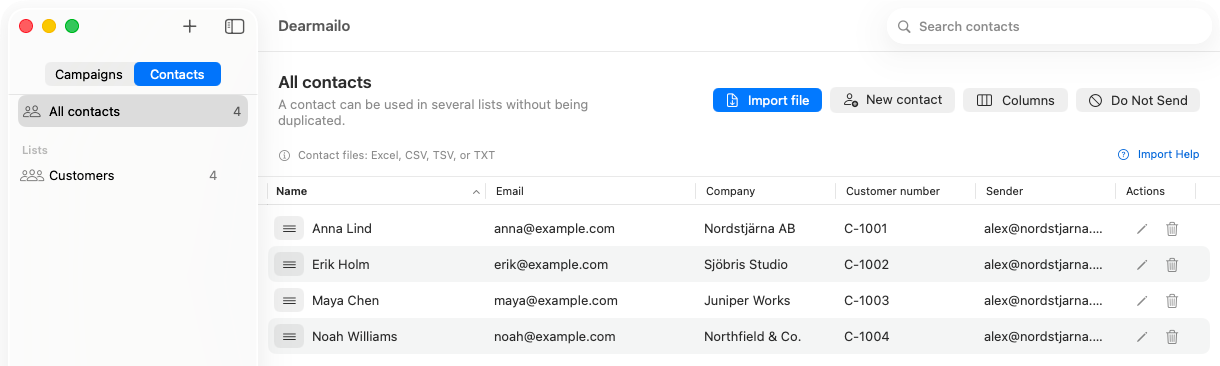
Deleting a contact from All contacts removes it from the contact library and its lists. Existing campaigns keep their own recipient copies, so review those separately. Updating a library list also needs a Refresh in the campaign before its recipient copy changes.
Removing a contact does not recall messages already sent through Apple Mail or remove that contact from backups you have kept.
Keep an address out of future sends
Manage Do Not Send addresses from Contacts. These exclusions are stored locally and checked across campaigns. Use this when someone asks you not to contact them, rather than relying only on removing them from a particular list.
Data & Privacy shows a summary of the exclusions. Review the list deliberately; removing an exclusion allows that address to be considered for sending again.
Privacy and account details
For the full explanation of local storage, Apple Mail, licensing, and website services, read the Dearmailo privacy policy.
For license activation or billing, use license recovery or contact support. App-data backups and your purchase record serve different purposes.