Dearmailo cannot connect to or control Mail
- Open Apple Mail and check that the intended account is signed in and can send a normal message.
- Check both permissions in the Mail access setup. Restart Dearmailo after changing Accessibility access.
- Close any Mail dialogs that need a response, then reconnect from Dearmailo's sidebar.
If the problem remains, note the exact error and use the support link below. Do not disable macOS security features to work around it.
A sender is missing, or Mail chooses another address
Check that the address or alias is configured in Apple Mail, then refresh the Mail connection in Dearmailo. Inspect Manage addresses in the campaign's Sender area.
If an alias configured in Mail is still missing, the address manager lets you register that same address and select the Mail account it sends through. This does not create a new mailbox or configure the alias with your provider.
If Mail substitutes another From address, check that account's outgoing settings and alias configuration in Mail. After correcting it, send yourself a fresh test from the intended sender.
Contacts are missing or do not match the list
For a file import, check the worksheet, email-column mapping, and whether the first row is treated as a header. Review any reported invalid addresses. Follow the import review to merge compatible duplicates and resolve conflicting entries.
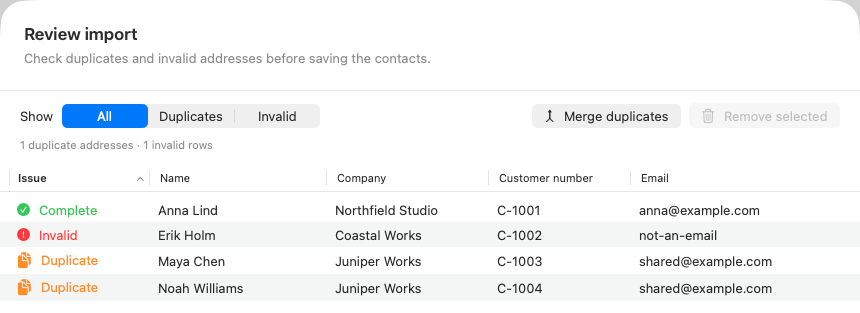
If the list looks right in Contacts but the campaign has older details, use Refresh under Recipients in Write. A campaign keeps its own saved copy of the list. Review the updated messages before sending.
For an address marked as excluded, check the Do Not Send list and whether it should remain excluded.
A test message opens in Mail or does not arrive
Open in Mail creates a draft for inspection. To deliver a test to your inbox, use Send test with an address you control.
Check Mail's Outbox for an unsent message and Sent for one that was submitted. Then check the receiving account's spam and other folders. If Mail reports an account error, resolve it there before trying another test.
The send pauses, fails, or needs review
Read the status and error for the affected recipient first. Dearmailo uses Mail's compose windows, keyboard commands, and Clipboard during sending. Typing, clicking, or using the Clipboard at the same time can interrupt that work.
If you need your Mac for another task, pause the campaign and wait for the current message to finish. Follow the sending checklist before resuming.
For an uncertain result, check Mail's Sent and Outbox before retrying that recipient so you do not send the same message twice. Review pacing and limits if the provider is rejecting messages or the run has reached its configured limit.
“Sent via Mail” means Mail accepted the send command, not that the recipient received it. Account reputation, authentication, message content, volume, and the receiving provider all affect delivery. Inbox placement is not guaranteed.
A scheduled campaign did not start
Check the campaign's scheduled date and named time zone. Dearmailo must be running, the user signed in, and the Mac awake. The schedule does not wake a sleeping Mac.
Read the campaign's current status before scheduling it again. Reconnect Mail if needed and resolve any delivery checks. Use the scheduling instructions to choose a new start.
Contact Dearmailo support
Email hello@longlastingapps.com and include:
- Your Dearmailo version, macOS version, and Mac model.
- The step you were on and the exact error message.
- Your mail provider and whether the issue affects one sender or all senders.
A screenshot with personal details hidden can help. Do not send passwords, license keys, or customer contact lists.