Install Dearmailo on your Mac
Dearmailo requires macOS 15 or later and works on Apple silicon and Intel Macs. Download the current release, open the disk image, and drag Dearmailo into Applications. Launch it from Applications to begin setup.
Before connecting, open Apple Mail and make sure the account you want to use can send a normal message.
Allow Dearmailo to work with Mail
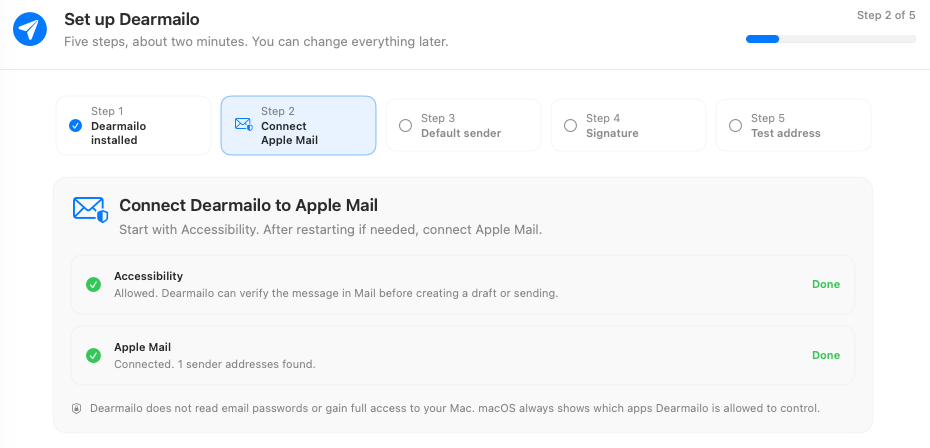
The setup assistant takes you through two macOS permissions. Accessibility lets Dearmailo work with Mail's visible compose windows; Automation lets it communicate with Apple Mail.
- Follow the Accessibility step to System Settings → Privacy & Security → Accessibility and enable Dearmailo.
- Quit and reopen Dearmailo after changing this permission.
- Choose Connect Apple Mail. When macOS asks whether Dearmailo may control Mail, allow it.
- If you previously declined, check System Settings → Privacy & Security → Automation → Dearmailo and enable Mail.
Dearmailo uses the account already signed in to Apple Mail. You do not need to enter that account's password in Dearmailo.
If the connection still fails, follow the Mail access checks.
Choose a default sender
Select the address you want to use by default from the accounts and aliases Dearmailo retrieves from Apple Mail. You can choose different senders for individual campaigns later.
Complete the assistant's signature step and enter an email address where you can receive tests. For additional senders or languages, see signature setup.
Ready for your first campaign
Follow the first-campaign walkthrough to import a contact list, write your message, review each result, and send yourself a test.
Activate and manage your license
The trial already includes every feature. After purchase, open Dearmailo → Settings → License, choose Activate license, and enter the key from your confirmation. Keep the key private. If you cannot find it, request a copy at your checkout email address.
For a paid subscription, Manage subscription opens your subscription management page, where you can manage payment details and cancel future renewal. Your access continues through the paid period. Complimentary licenses do not have an annual subscription to manage.
Moving to another Mac? Choose Deactivate on this Mac on the old computer before activating the new one when possible. This frees an activation slot without deleting local contacts or campaigns. Back up your work separately to move it. If the old Mac is unavailable, contact support.